Schedule Integration
For the proposal phase of a project, you can share data bi-directionally with either Microsoft Project (MSP) or Oracle Primavera P6 in BOEMax. You are either creating or updating the work packages and resource assignment details in BOEMax and exporting the data to the schedule tool. Alternatively, you are creating and updating the resource loaded activities in the schedule tool and importing the data into BOEMax. This ensures the schedule and time phased cost estimate data are in agreement. When you intend to share data bi-directionally, recommend maintaining a one-to-one relationship between the schedule activities in MSP or P6 and the work packages in BOEMax. Should you have a many-to-one relationship, recommend you always use the schedule data to create or update the work package and resource assignment details in BOEMax.
For the execution phase of a project, the schedule tool is used to create or maintain the budget baseline and estimate to complete data in MaxTeam or EVMax. The current schedule activity physical percent complete is used as the basis to calculate the work package percent complete in MaxTeam or EVMax. The schedule resource loaded activities provide the source data for the budget baseline or remaining work estimate to complete values in MaxTeam or EVMax. There may be a one-to-one or many-to-one relationship between the schedule activities in MSP or P6 and the work packages in MaxTeam or EVMax.
When you have implemented the change control workflow process on your project and are sharing data between BOEMax and MaxTeam or EVMax, all changes, including updates for rolling wave planning, are first modeled in BOEMax. Update the schedule baseline data in the schedule tool and then import the data into BOEMax. Once the changes are approved in BOEMax, they are merged into MaxTeam or EVMax to maintain the budget data. The shared workflow functions ensure all changes to the baseline data are automatically documented using the source data in BOEMax and MaxTeam or EVMax.
 General Guidelines
- Determine whether you are including or excluding the resource data. In this instance, the lowest level of data detail you are sharing with the schedule tool is the work package level in the ProjStream tools. You may or may not be resource loading your schedule activities. When you are not resource loading your activities, use the ProjStream tools to assign resources to the work packages and create or maintain your time phased data.
- Determine whether there is a one-to-one or many-to-one relationship between the schedule activities and a work package in the ProjStream tools. One-to-one is more straightforward. With many-to-one relationships, additional data validation checks are often needed on the schedule side to ensure the activities related to a single work package are assigned the same resource element of cost category and comparable earned value techniques. For example, all of the activities related to a single work package have been assigned labor resources and the percent complete earned value technique.
- When you intend to import a BOEMax project into MaxTeam or EVMax for the execution phase of a project, recommend creating an activity level user defined field (UDF) for the earned value technique (EVT) in your schedule tool so that you can map the schedule tool EVT to the comparable ProjStream EVT. You will need to populate the UDF with the applicable ProjStream EVT code. See Earned Value Techniques.
Data Mapping Guidelines
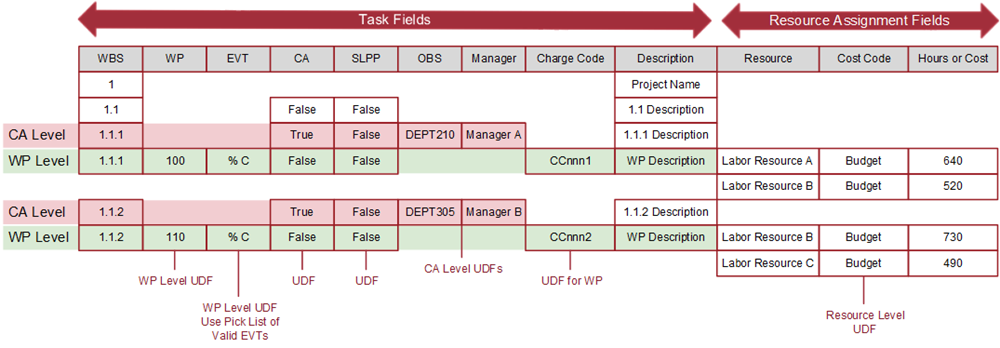
When importing data from a schedule tool, you will need to map the schedule fields to the applicable fields in the ProjStream tools so the import process knows what to do with the data. The image below illustrates common schedule fields and how they align with the fields in the ProjStream tools.
At a minimum, you need to include the following fields at the task or activity level:
- A WBS code. The task or activity outline structure in the schedule tool should include the complete WBS hierarchy. You will need to identify the control account level in the WBS. Notice in the illustration above, the control account level and work package level WBS elements are the same. A control account flag field and work package identifier differentiates the levels. Also notice the summary level planning package (SLPP) flag field in the event you are using rolling wave planning. This matches how the ProjStream tools structure the data.
- A work package code or ID. This is typically a user defined field (UDF) in the schedule tool. As an option you can default to a standard task or activity ID field in the schedule tool.
- Earned Value Technique (EVT). Although not used during the proposal phase, recommend including the code for when the project transitions to the execution phase. Create a UDF in the schedule tool. Recommend creating a code field with a pick list for the users. The available codes must match the EVT codes in the ProjStream tools. In the example above, the EVT is set to "% C" for Percent Complete. See Earned Value Techniques.
- Description. This is typically the default task or activity description field regardless of the level of detail (WBS element levels, control account level, or work package level).
When you resource load your schedule, you need to include the following fields:
- Resource code. The resource code in the schedule tool and the lowest level resources in the ProjStream tool resource structure should match.
- Cost code. This is a UDF in the schedule tool. The code you enter must match the cost code in the ProjStream tool. In the example above, the cost code is set to "Budget."
The example above also illustrates UDFs at the control account (CA) level and the work package (WP) level. In the ProjStream tools, UDFs can be at the work breakdown structure/control account, work package, or resource level. The UDFs in your schedule tool will need to be defined at a comparable level.
MSP Use Notes
- Use the task level UDF Text1 field to enter your WBS element codes. Do not use the default MSP WBS field or a UDF outline field. Typically the MSP Textn fields follow the sequence of other required fields and UDFs. The default UDF Textn assignments are as follows: Text1 is the WBS element, Text2 is the work package, Text3 is the EVT, Text4 is the control account True/False flag, Text5 is the summary level planning package (SLPP) True/False flag. Any other UDFs follow. Using the example above, this would include Text6 for the OBS, Text7 for the Manager, and Text8 for the Charge Code.
- Use the resource level UDF Text1 field to enter the budget cost code.
- Use the indent and outdent Ribbon Menu options to create your WBS hierarchy.
- Exporting data from BOEMax or EVMax to create a new MSP project does create the pick list options for the earned value technique in MSP (a UDF in MSP). You can export a BOEMax or EVMax project to create a new MSP project as a model to verify the default set of UDFs for mapping data between the tools.
P6 Use Notes
- Verify the resource assignment planned start and finish dates are within the activity start and finish dates.
- For the WBS attributes such as manager at the control account level, consider defining a WBS UDF. Define activity level UDFs for work package level details such as the EVT.
Prerequisites
When you intend to import schedule data into a ProjStream tool:
- Create the project in the applicable ProjStream tool. As for all new projects, assign the calendar, rate, and resource structures. The import process populates the work breakdown structure (WBS) for you provided you have created an initial WBS with at least a level 1 WBS element. The level 1 WBS element code and description in the ProjStream tool must match the level 1 WBS element code and description in your schedule tool. The WBS should have a single level 1 element (total project).
- Verify the project's resource structure includes the complete set of resources assigned to tasks (MSP) or activities (P6). When they do not exist in the project's resource structure, the import process displays an error message for you to determine what you want to do. See Add Resources.
- Verify the project's rate structure includes the complete set of rates for the resources defined in the resource structure. When they do not exist in the project's rate structure, the import process displays an error message warning you which resources are missing rates. You will need to update the content in the project's rate structure to add the applicable rates. See Add Rates.
In the schedule tool:
- Use the WBS hierarchy and coding to define the outline levels for the tasks (MSP) or activities (P6). The lowest level is the task or activity level. A task or activity may have a one-to-one or many-to-one relationship to a work package in the ProjStream tools.
- Verify all expected task (MSP) or activity (P6) and resource codes have been assigned.
- Create a task (MSP) or activity (P6) user defined field with a pick list of valid ProjStream earned value technique codes. See Earned Value Techniques.
Implementation Tips
- The default work package assumption type is set to Bottoms Up. This is typically the best option when sharing data with MSP or P6.
- The default work package spread reflects the default project level setting (Manage Projects tab window, Settings tab). There is an import option to use the MSP or P6 spread instead.
- Be sure to close MSP or P6 before you action an import or export option in the ProjStream tools.
- Be sure to enter an activity physical percent complete in the schedule tool when you want to import the schedule status into MaxTeam or EVMax. Also enter an actual start date when the activity begins and an actual finish date when the activity completes. The import process uses the activity data to populate the actual start date, actual end date, and percent complete fields in the Work Package Status EVT tab.
What do you want to do?
- Import Schedule Data from MSP or P6 into EVMax to create the budget baseline data
- Import Schedule Status from MSP or P6 into EVMax to calculate earned value for the current reporting period
- Import Schedule Forecast Data from MSP or P6 into EVMax to maintain the estimate to complete data